
fiko is made for a phone screen. It is laid out by touch: split the screen into docks, pin the sessions that matter, and let the rest run in the background and tell you when they are done. Every session is in one list, with a live preview of the one selected. The keys a phone keyboard lacks are on a bar over it. The server's files open in an SFTP tab. The phone's clipboard works in a session too: a picture or a file copied in another app is pasted there, uploaded to the server, and its path typed at the cursor.
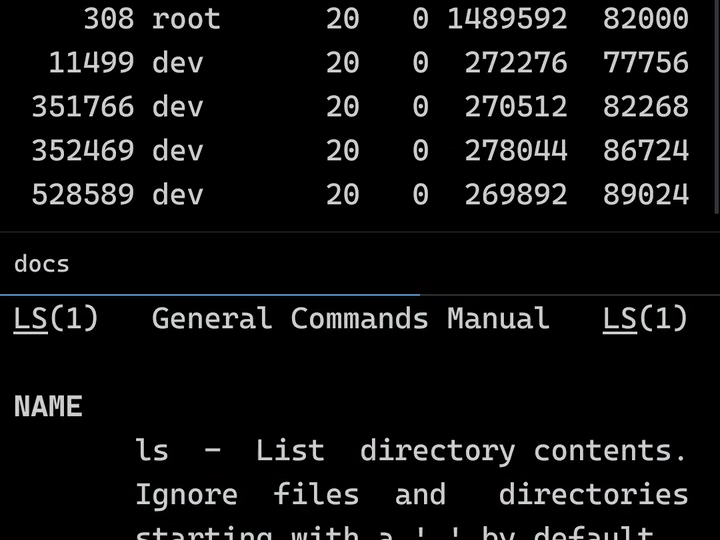
Two sessions on one screen, side by side or stacked, each dock with its own tabs. Drag a tab to an edge to split the screen, drag it into another dock to move it, and drag the divider to resize.
Docks
- Three sessions, three tabs. Only one is shown at a time, until the screen is split.
- A tab is dragged toward an edge, and the screen splits there.
- Two docks, each with its own tabs: monitor above, docs below, both live.
- The divider is dragged, and they resize.
- A tab moves into another dock the same way: monitor is dragged down.
- The whole layout, arranged by touch.
Pin the sessions that need watching, and only they stay on screen. The others keep running in the background, and a tap in the session list shows any of them.
Pins
- Six sessions are open. Only two of them need watching.
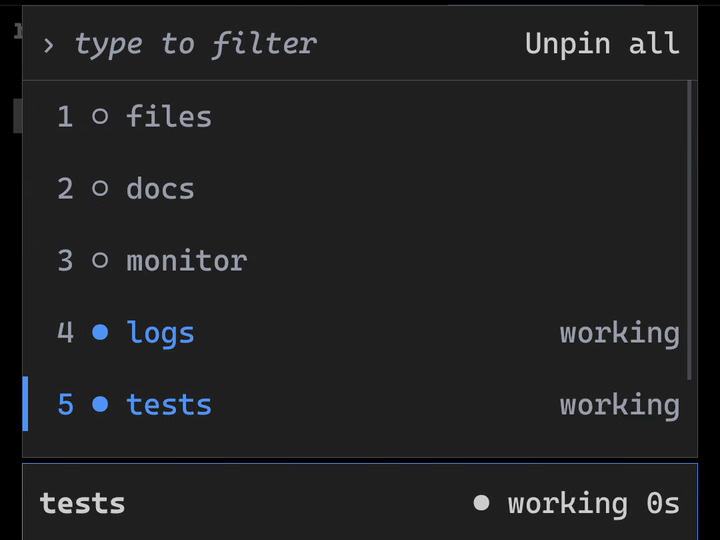
- The session list shows them all. working marks a session that is busy right now.
- The circle before logs pins it. It stays in front, and the counter reads 1/6.
- tests is pinned too: 2/6. The preview under the list is live.
- Only the two pinned sessions are on screen. The others keep running in the background.
- The list again. A session in the background is tapped.
- monitor is shown, and the two pins do not change.
A coding agent in a session on a server cannot see a phone's clipboard. Copy a picture in any app and paste it into the session: fiko uploads it to the server's temporary folder and types its path, and the agent reads the picture. Shown here with Claude Code.
Agents
- Claude Code runs in a session on the server. A picture is on the phone's clipboard.
- The agent is on another machine and cannot see that clipboard. Paste is on the bar.
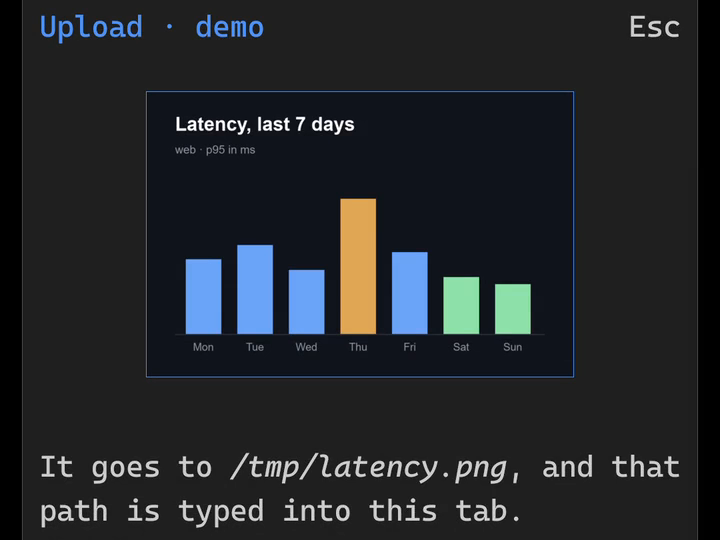
- fiko shows the picture and where it goes on the server: /tmp/latency.png.
- Upload sends it to the server's temporary folder.
- Its path is typed into the prompt, and the agent takes it as a picture: [Image #1].
- A question is typed after it and sent: what does this chart show?
- The agent has read the picture: a bar chart of latency, with Thursday the outlier.
- It also says what the picture cannot tell: with no scale drawn, only how the bars compare.
Share a picture or any other file from another app into fiko. It goes into the folder an SFTP tab shows, or to the server through an SSH tab, where its path is typed at the cursor for the program running there.
SessionsEvery session in one list, with its state and a live preview of the one selected. Type part of a name to filter, tap to go there. The state comes from the shell's prompt marks (OSC 133) and a program's own progress report (OSC 9;4), which the tab shows as well.
Quick accessEverything fiko can do is in one list. Type part of an action's name and run it, with no menu to look through. With a keyboard attached, every shortcut can be changed.
TerminalTrue colour, every text style, box drawing and links (OSC 8). Search the output, and scroll back as far as you set. A bar over the keyboard has Esc, Tab, Ctrl, the arrows and the other keys a phone keyboard lacks. Programs get what they ask for: the Kitty keyboard protocol, modifyOtherKeys, bracketed paste, focus events, mouse reporting, synchronized output and the shell's working directory (OSC 7).
MouseSome terminal programs are run with a mouse, and a phone has none. One key on the bar makes the screen a touchpad: the finger slides anywhere and a pointer in the terminal follows it. A tap clicks where the pointer is, a second tap held and slid drags, and a finger held still clicks the right button.
FilesOpen a server's folders in an SFTP tab. Upload, download, rename, move and delete, select many at once, copy their paths, read a text file where it is. Transfers run in a list with their progress.
ServersA server is saved with its address and a way to sign in: password, key, keyboard-interactive or none. Its host key is confirmed the first time and remembered.
SSH keysMake a key pair on the phone, or import one. The private key stays in fiko, encrypted with a key held in Android Keystore. The public key is copied with one tap, to give to a server.
ClipboardPaste a picture or a file from the clipboard into a session: fiko uploads it to the server's temporary folder and types its path at the cursor. A program in a session can copy to the clipboard with OSC 52; before one reads it the same way, or before a paste with line breaks runs, fiko asks first.
AlertsA session that is out of view can still ask for attention: a program there rings the bell or sends a message when its work is done, with OSC 9, OSC 777 or Kitty's OSC 99. fiko shows it as a toast over the screen, with a sound or a vibration if wanted, and as an Android notification while fiko is in the background. A session can be muted.
ThemeBlack or white, with one of four accent colours: blue, rose, orange or green. The font's weight and size and the terminal's text scale and line height are set in the same panel, and each change shows at once.
Sessions
- Six sessions are open and logs is shown. A deploy is running in another one.
- Every session is in one list. Under it is a live preview of the selected session and its state: working.
- The list narrows with each letter typed.
- Only deploy is left. Its preview is live, and its state changes to idle when the work is done.
- A tap, and deploy is shown.
Quick access
- A phone screen has little room for menus, and fiko has many actions.
- Quick access is one list that holds all of them.
- Pages, sessions, tabs, settings: every action is here, in groups.
- Part of an action's name is enough: the list narrows as it is typed.
- Only Theme is left.
- A tap, and the Theme settings open over the session.
Terminal
- True colour, text styles and box drawing, drawn as a desktop terminal draws them.
- A phone keyboard has no Esc, Tab or Ctrl. The bar over it has them.
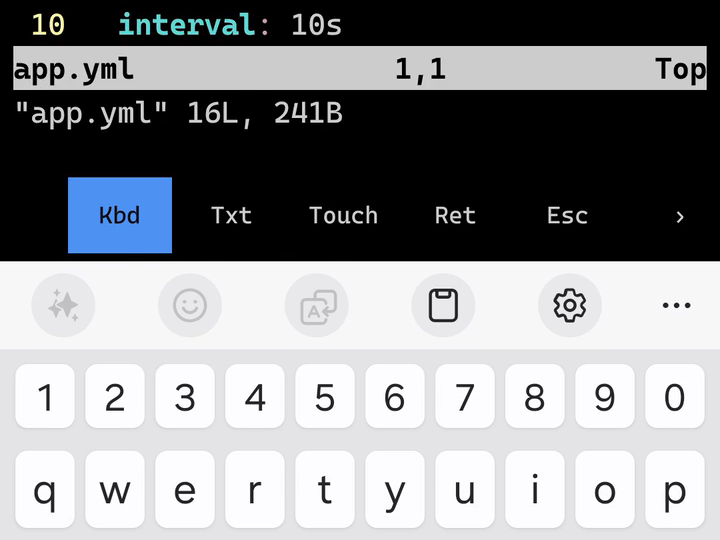
- Tab from the bar completes the file name: app.yml.
- A full-screen editor runs as it does on a desktop, colours and all.
- The bar has more pages. This one has the arrow keys, and they move the cursor.
- Esc is on the bar as well. The editor is closed, and the shell is back.
Files
- A server's folders, in an SFTP tab beside the terminal sessions.
- A tap opens a folder. logs holds two files.
- A tap picks a file. A second tap, or a hold, opens its actions: open, download, rename, move, delete.
- A text file opens in fiko: README.md.
- Select puts a circle before every name.
- Two files are selected. They can be downloaded or moved together, or their paths copied.
Servers
- A server is saved once. After that it is opened with a tap.
- Servers lists the saved ones. Add starts a new one.
- A server is a name, an address and a way to sign in.
- The name is what the list shows: staging.
- The address is written as for ssh: user, host and, if needed, a port.
- Four ways to sign in: password, key, keyboard-interactive, or none.
- Key signs in with a key kept in fiko. This one is named ed25519.
- Saved. staging is in the list, to open as a terminal or as files.
SSH keys
- An SSH key is a pair. The private key signs in and stays in fiko; the public key is given to the server.
- Keys are kept with the servers: SSH Keys, under the list.
- One pair is here already. Generate makes another.
- A new pair, made on the phone: ed25519-2.
- A tap on it shows the public key, the line a server is given.
- Copy puts the public key on the clipboard. The private key does not leave fiko.
Clipboard
- A picture was copied in another app: latency.png is on the clipboard.
- In a terminal session, a command is begun: ls -lh and a space.
- Paste is on the second page of the bar over the keyboard.
- A terminal takes text, not pictures. fiko shows the picture and where it goes on the server: /tmp/latency.png.
- Upload sends it to the server's temporary folder.
- The path is typed at the cursor, where the picture itself could not go.
- The command runs on it. A program in the session can read the picture by that path.
Alerts
- A deploy is started in one session. It will take a while.
- It runs. Nothing needs watching here.
- Another session is opened, a log. The deploy goes on out of view.
- The deploy ends and says so. fiko shows a toast with the session's name and its message: Deploy finished: web v2.4.9.
- Show goes to that session: deployed.
Theme
- A terminal in fiko's black theme, with a blue accent.
- Theme is in Quick access, with the other settings.
- Three tabs: Theme, Font and Terminal. The preset is Black.
- White is chosen, and the whole of fiko changes at once, behind the panel too.
- The accent goes from Blue to Green: headings, the chosen tab, the cursor.
- Under Terminal, the text scale is raised two steps, and the text behind grows.
- Save keeps it. The same session, in white, with larger text.
Mouse
- This program is run with a mouse: its rows are clicked. On the bar, the key reads Touch: a finger is a finger.
- One press, and it reads Mouse. The terminal shows a pointer.
- The screen is a touchpad now: the finger slides anywhere, the pointer goes the same way, and the row under it lights up.
- A tap clicks where the pointer is, not where the finger is. cache is running.
- A slide to the next row, a tap: mail is stopped.
- The key again, and a finger is a finger. The pointer is gone.
Find
- A log runs past. Somewhere in it are the requests that failed.
- Find is on the bar over the keyboard.
- 500 is typed. Every match in the scrollback is marked, and counted.
- The arrows beside the count step from one match to the next.
Scrollback
- Output runs past faster than it can be read.
- A drag down goes back through it.
- The lines from two minutes ago are still here. How many are kept is a setting.
- A few flicks, and the newest lines are back.
Rename
- README.md should end in .txt.
- A hold on the file opens its actions. Rename is one of them.
- The name opens in a box, ready to change.
- The last letters are replaced: README.txt.
- Save, and the file has its new name on the server.
Move
- notes.txt is in web. It belongs in logs.
- A hold on the file, and Move.
- Only folders are listed now, to pick the one it goes to.
- Inside logs, Move Here.
- notes.txt is gone from web.
- It is in logs, beside the two logs.
Select many
- Three of these files belong in another folder.
- Select puts a circle before every name.
- The three are tapped: 3 selected.
- Move works on all of them. The folder is picked once.
- They are moved one after another, with the count shown.
- All three are gone from web.
Upload
- This folder is on the server. Upload, under the list, sends a file from the phone to it.
- Android's own file list opens, and the file to send is tapped: release-notes.txt.
- Back in fiko, the upload shows its progress over the list.
- release-notes.txt is in the folder on the server.
Download
- notes.txt is on the server. It is wanted on the phone.
- A hold on the file, and Download.
- Android asks where to keep it. A folder is chosen: fiko-demo.
- Android asks once whether fiko may write to that folder.
- Back in fiko, the download shows its progress over the list.
- Saved on this device: the file is on the phone.
First connection
- A server is opened for the first time. fiko has not seen its key.
- The server is tapped in Servers.
- Before anything is sent, fiko shows the server's host key and asks. The address is covered in this clip.
- The fingerprint is compared with the server's own. They match: Trust.
- Trusted. The key is remembered, and the connection goes on.
Known hosts
- Every host key that was trusted is kept in a list.
- Known Hosts is under the list of servers.
- One host is remembered, with its key type and fingerprint. Its address is covered in this clip.
- A hold on it offers Info and Forget. A forgotten host is asked about again.
- Info shows the whole key as one line, to copy.
Add to a server
- The public key is on the clipboard. A server keeps the public keys it accepts in one file.
- In a session on that server, the line that adds to the file is begun.
- The bar over the keyboard has a second page, with Paste.
- Paste puts the whole public key on the line.
- The line is finished: it adds the public key to .ssh/authorized_keys.
- One public key is in the file. The server now lets its private key sign in, with no password.
Sign in with the key
- The server has the public key. The private key is on the phone, in fiko.
- staging is a saved server. Addresses are covered in this clip.
- A hold on it, and Edit shows how it signs in.
- Sign in with is set to Key, and the key is ed25519-2, the pair made earlier.
- Back in the list, the server is tapped.
- fiko connects and signs in with the private key.
- The shell is open. No password was asked for.
Away from fiko
- A deploy is started in a session.
- It runs. This time fiko itself is left.
- Another app is in front. The session stays open in the background.
- The deploy has ended. In Android's notification panel, fiko's notification has the session's name and its message.
- A tap on it opens fiko at that session: deployed.